How to Publish New Blog Posts: The Markdown & Pictures Guide
A simple, frictionless workflow for writing articles with tags, categories, subcategories, and images using Astro markdown.
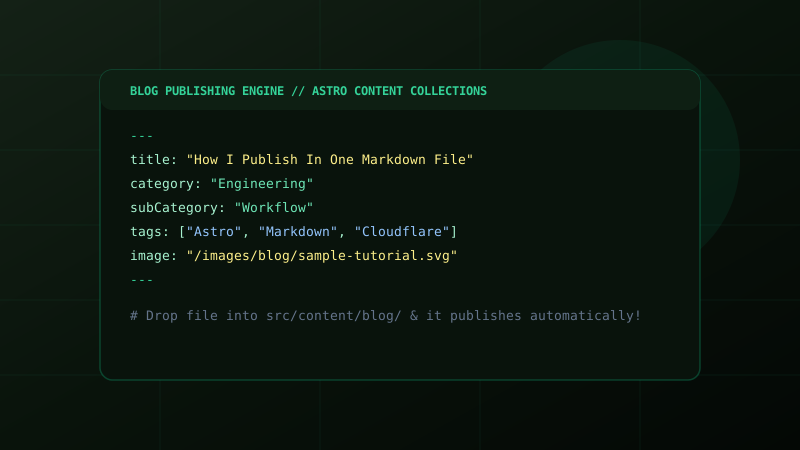
FIG // Astro Content Collections Markdown Publishing Workflow
Writing and Publishing Blogs in Seconds
Publishing a new article on this website is designed to be completely frictionless. You do not need to edit any UI components, config files, or JavaScript code.
All you do is create a single .md file inside the src/content/blog/ folder.
1. The Simple Frontmatter Template
At the top of your markdown file, add the following frontmatter block:
---
title: "Your Article Title Here"
description: "A short 1-2 sentence preview for the gallery and search engines"
date: 2026-10-06
category: "Education"
subCategory: "Cambridge Pedagogy"
tags: ["IGCSE", "Computer Science", "AI in Education"]
image: "/images/blog/your-cover-picture.jpg"
imageAlt: "Description of the cover picture"
---
Explanation of Fields:
title(Required): The full title of your article.category: The primary domain (e.g. Education, Technology, Design, Public Policy, Engineering). You can create any new category anytime!subCategory: Specific focus area (e.g. Cambridge Pedagogy, AI Ethics, Hackathons, Web Development).tags: A list of topic tags such as["Python", "MUN", "A Level"].image: Path to your cover image (e.g./images/blog/photo.jpgor an external URL).date: The publication date (format:YYYY-MM-DD).
2. Adding Pictures to Your Post
You can add pictures in two simple ways:
A. Main Cover Picture
Set the image: property in your frontmatter as shown above. It will automatically render as the hero banner of your post and on the gallery card.
B. Pictures Inside the Body of Your Post
Store your image files inside public/images/blog/ (e.g., public/images/blog/my-diagram.jpg).
Then, inside your markdown body, simply write:
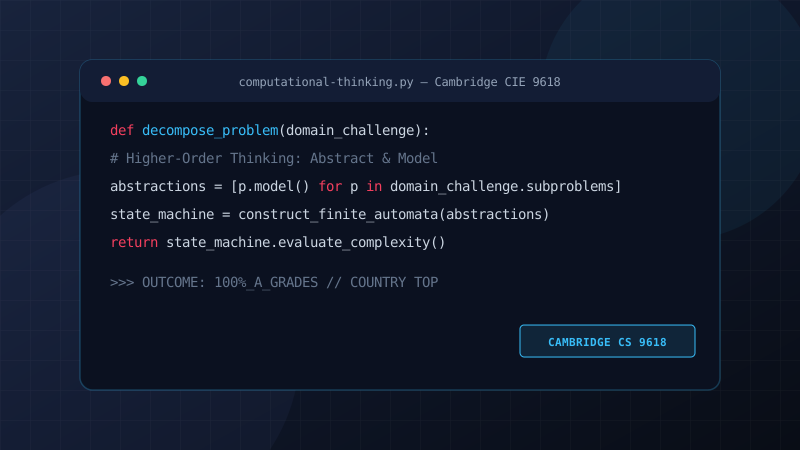
Here is a live example of an inline picture:
3. Formatting Your Content
Markdown supports standard rich-text formatting:
Headings
## Section Heading
### Sub-section Heading
Callouts & Quotes
“Authentic subject mastery emerges when a student treats code as an artifact of structured thought rather than mere syntax.”
Code Blocks
def solve_problem(inputs):
    # Algorithmic decomposition
    return [x * 2 for x in inputs]
4. How It Publishes
Whenever you save your markdown file and push to GitHub, Cloudflare Pages automatically builds the site and deploys it to mravariya.pw in under 60 seconds.